How to Delete Pages from a PDF
Mar 17, 2026

Learn how to delete pages from a PDF quickly and remove unwanted sections using Docsora.
Delete pages from PDF online → app.docsora.com/services/tools/delete
How to Delete Pages from a PDF
Why Delete Pages from a PDF?
PDF documents often contain pages that are no longer needed.
You may want to remove pages to:
delete blank or duplicate pages
remove sensitive or confidential information
shorten a document before sharing
clean up reports or presentations
extract only relevant content
Instead of recreating the document, deleting pages allows you to quickly edit the file and keep only what matters. In this article, we will show you a step by step process of how to delete pages from your PDF using Docsora.
How to Delete Pages from a PDF Using Docsora
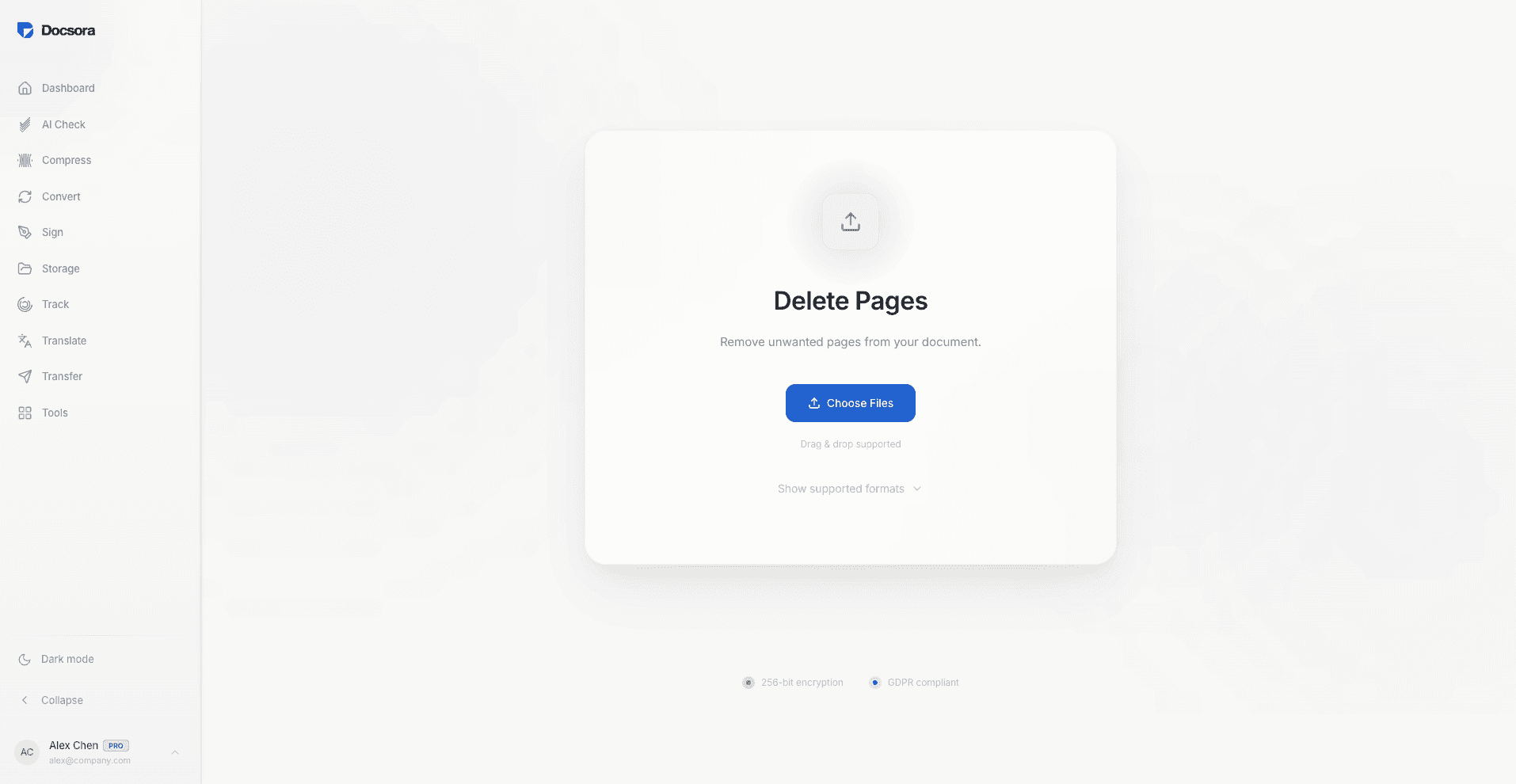
Step 1 - Open the Docsora Delete Tool
Go to the Docsora PDF tools and select the Delete Pages feature here: app.docsora.com/services/tools/delete
This tool allows you to remove specific pages from your document in seconds.
Step 2 - Upload Your PDF
Upload the PDF file you want to edit.
Docsora will load the document and display all pages for selection.
Step 3 - Select Pages to Remove
Choose the pages you want to delete from the document.
For example, you can remove:
the first or last page
specific pages in the middle
multiple pages at once
This gives you full control over the document structure.
Step 4 - Apply Changes
Click Delete Pages to remove the selected pages.
Docsora will process the document and create a new version without the pages you selected.
Step 5 - Download the Updated PDF
Once complete, download the updated PDF file.
You now have a clean version of the document ready to share, store or use across any of the services available in Docsora.
Tips When Deleting Pages from a PDF
To ensure the final document is accurate:
review the pages before deleting
double-check page numbers
keep a copy of the original file
confirm the document flow after editing
This helps avoid removing important content.
When Should You Delete Pages from a PDF?
Deleting pages is useful when working with:
contracts with unnecessary sections
reports with extra pages
presentations with outdated slides
scanned documents with blank pages
It helps keep documents concise and relevant.
Delete PDF Pages with Docsora
You can remove unwanted pages from a PDF quickly using Docsora.
Upload your document, select the pages to delete, and download a clean version in seconds.
Delete pages from your PDF now → app.docsora.com/services/tools/delete
FAQ
Can I delete pages from a PDF without editing the whole document?
Yes, Docsora allows you to remove specific pages without changing the rest of the document.
Can I delete multiple pages at once?
Yes, you can select and delete multiple pages in a single action.
Will deleting pages affect the rest of the document?
No, only the selected pages are removed. The rest of the document remains unchanged.
Delete pages from PDF online → app.docsora.com/services/tools/delete
Keep work moving.