How to Convert PDF to Word Without Losing Formatting
Mar 16, 2026

Learn how to convert PDF files into editable Word documents without losing formatting or layout.
Conver PDF to Word online → app.docsora.com/services/convert
Why Convert a PDF to Word?
While PDFs are ideal for sharing documents, they are not designed for editing. Converting a PDF to Word allows you to:
edit text and paragraphs
modify tables and layouts
update contracts or reports
reuse document content
collaborate with others in Word
Many professionals convert PDFs to Word when they need to update existing documents quickly without recreating them from scratch.
Common Problems When Converting PDFs
PDF conversions sometimes create formatting issues, especially if the document contains:
complex layouts
tables
custom fonts
scanned pages
images embedded in text
These problems can result in:
broken paragraph structure
misaligned tables
missing fonts
misplaced images
Using a reliable PDF conversion tool helps maintain the original document structure as much as possible.
This article displays how to convert a PDF to a Word document using Docsora's convert feature.
How to Convert PDF to Word Using Docsora
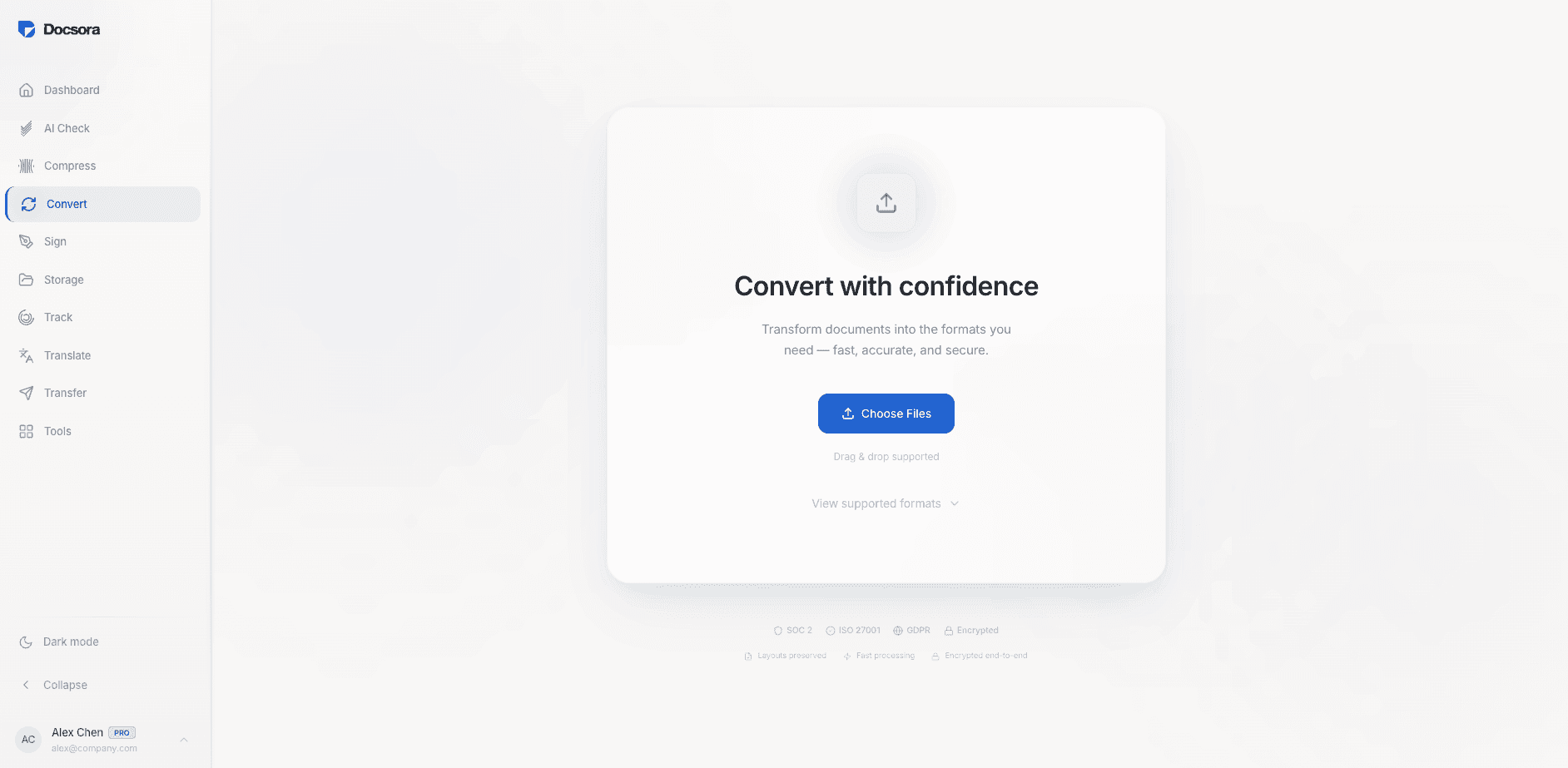
Step 1 - Open the PDF Conversion Tool
Go to: app.docsora.com/services/convert
Docsora allows you to convert documents between multiple file formats, including PDF to Word.
Step 2 - Upload Your PDF File
Drag and drop your PDF file into the upload area.
Docsora will automatically detect that you have uploaded a PDF file format and display the available conversions - depending on the file type you have uploaded. Docsora support a wide range of documents, including:
contracts
reports
presentations
scanned documents
multi-page PDFs
Once uploaded, the file will be processed securely.
Step 3 - Select Word as the Output Format
Choose Word (.DOCX / .DOC) as the conversion format.
Docsora will convert the PDF into an editable Word document while preserving:
text formatting
page layout
tables
images where possible
Step 4 - Download the Word Document
After the conversion is complete, download the converted file.
You can now open the document in Microsoft Word and edit it as needed.
Tips to Preserve Formatting During Conversion
To get the best results when converting PDFs to Word:
Use original digital PDFs: Documents created digitally convert better than scanned PDFs.
Avoid unusual fonts: Custom fonts may not transfer correctly if they are not available on your system.
Check tables and images: Some complex layouts may require minor adjustments after conversion.
Use high-quality source files: Low-resolution documents may produce less accurate results.
When Should You Convert a PDF to Word?
PDF to Word conversion is useful when you need to:
update existing contracts or agreements
edit reports or proposals
extract text from documents
reuse document templates
collaborate with teams using Word
Try Converting a PDF to Word
You can convert a PDF to Word instantly using Docsora.
Convert your PDF now → app.docsora.com/services/convert
Docsora supports multiple document tools including conversion, compression, file transfer, and document management - helping teams handle documents faster and more efficiently.